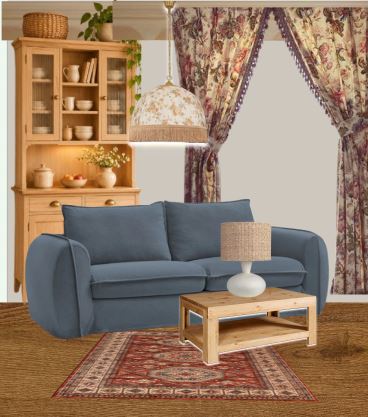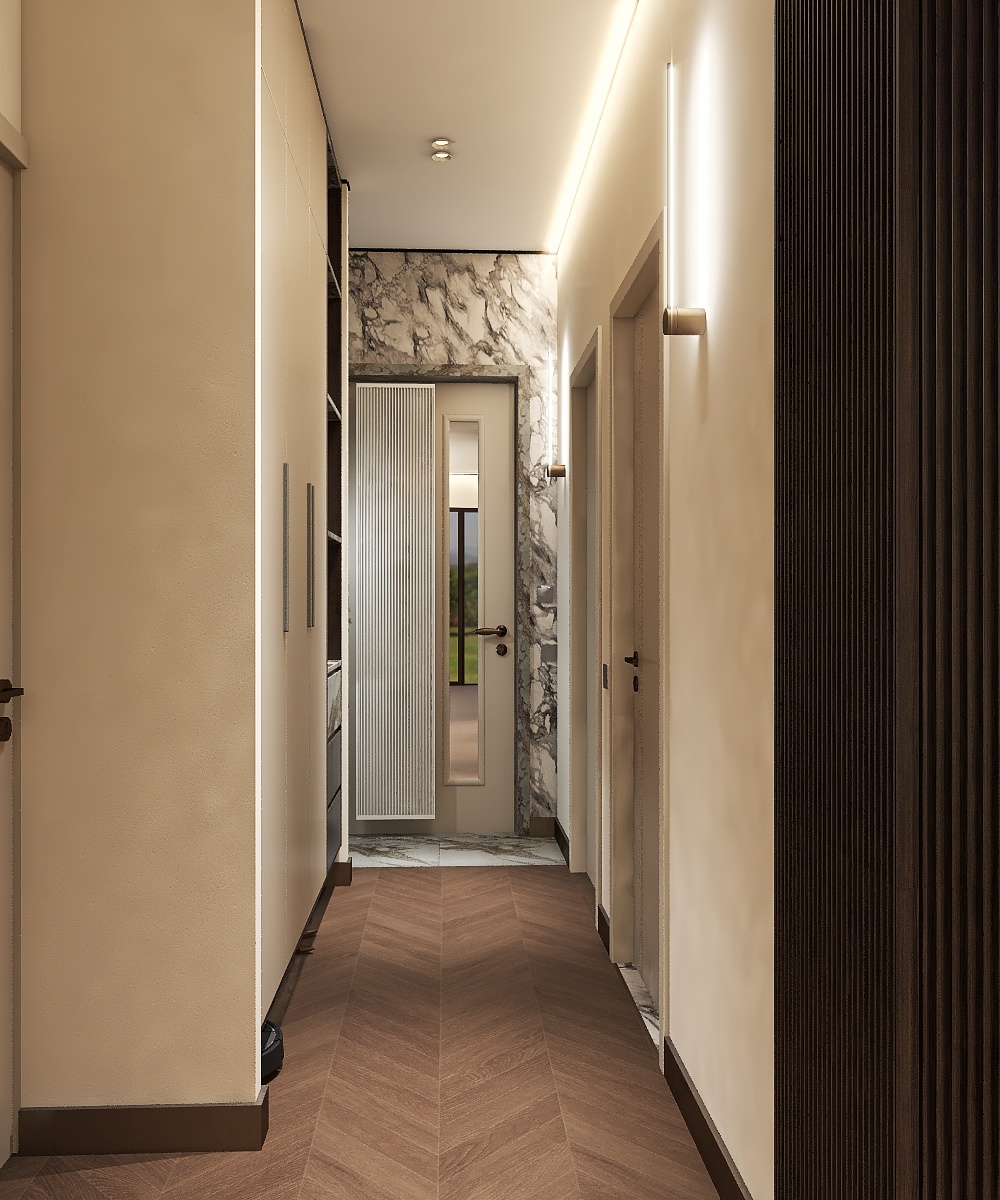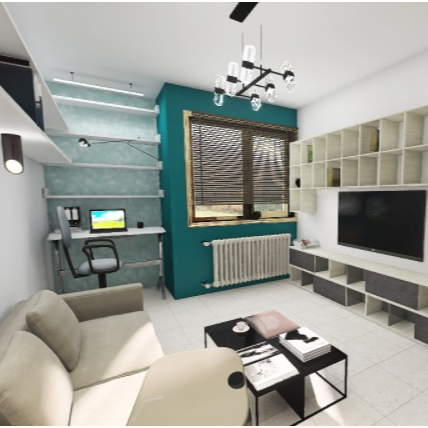
Leave a comment about Homestyler to earn 1 free AI Planner credit! Then try AI Planner and join our design competition.
After entering the canvas page, click the AI Planner button in the left-side toolbar.
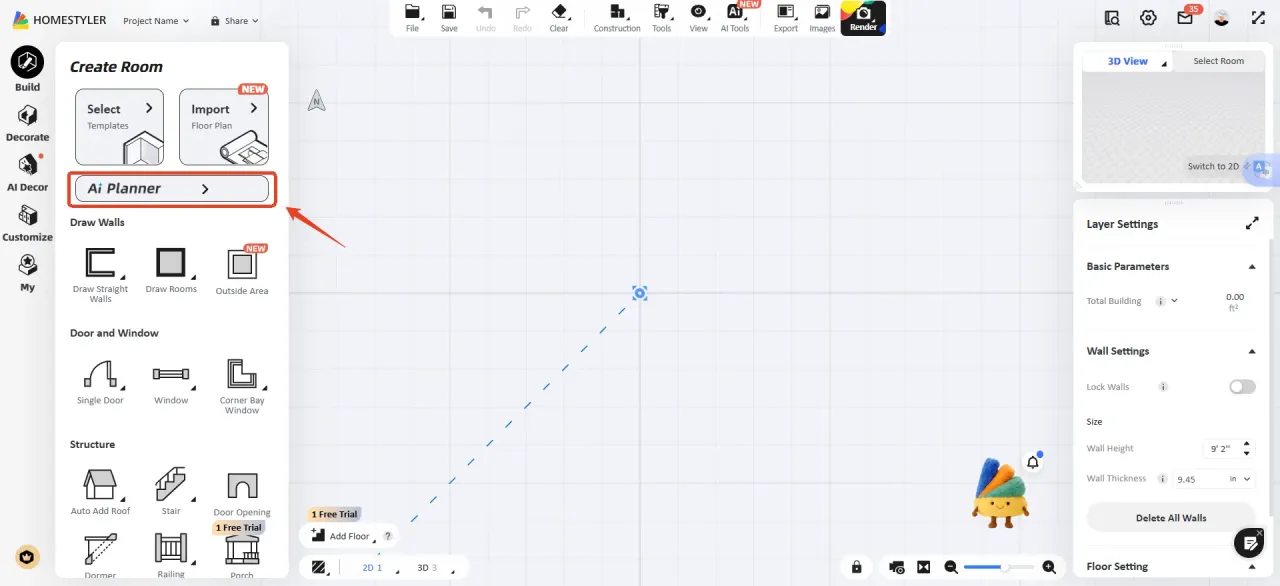
On the AI Planner page, set the floor plan parameters according to your needs and select the desired layout.
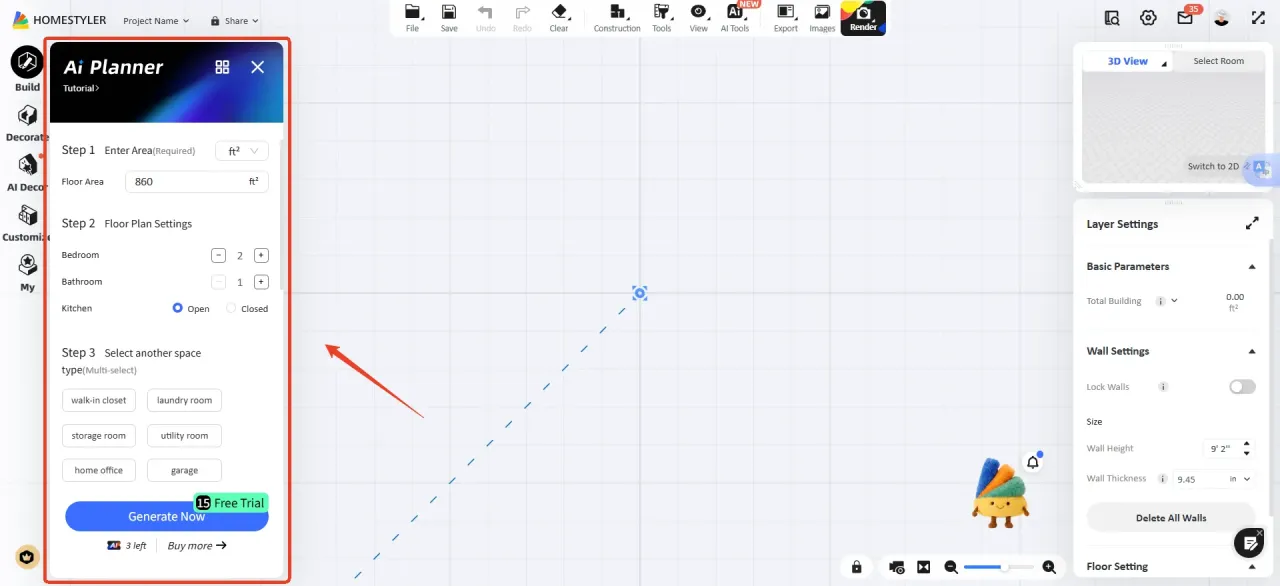
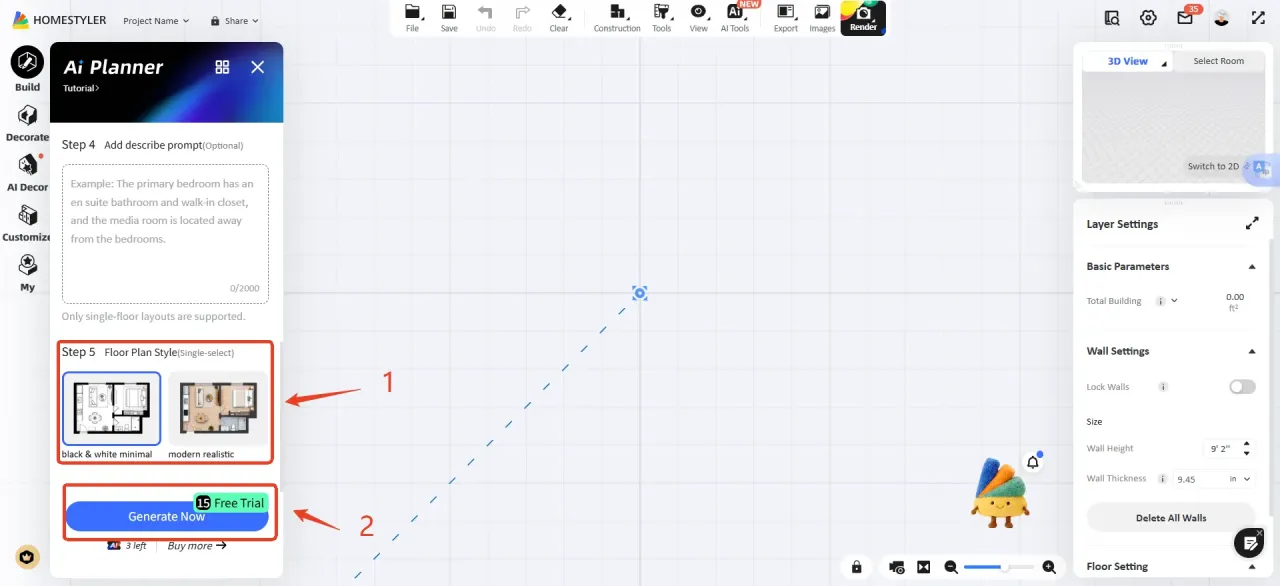
Once the layout settings are complete, you can further choose a floor plan style. After confirming the settings, click Generate Now.
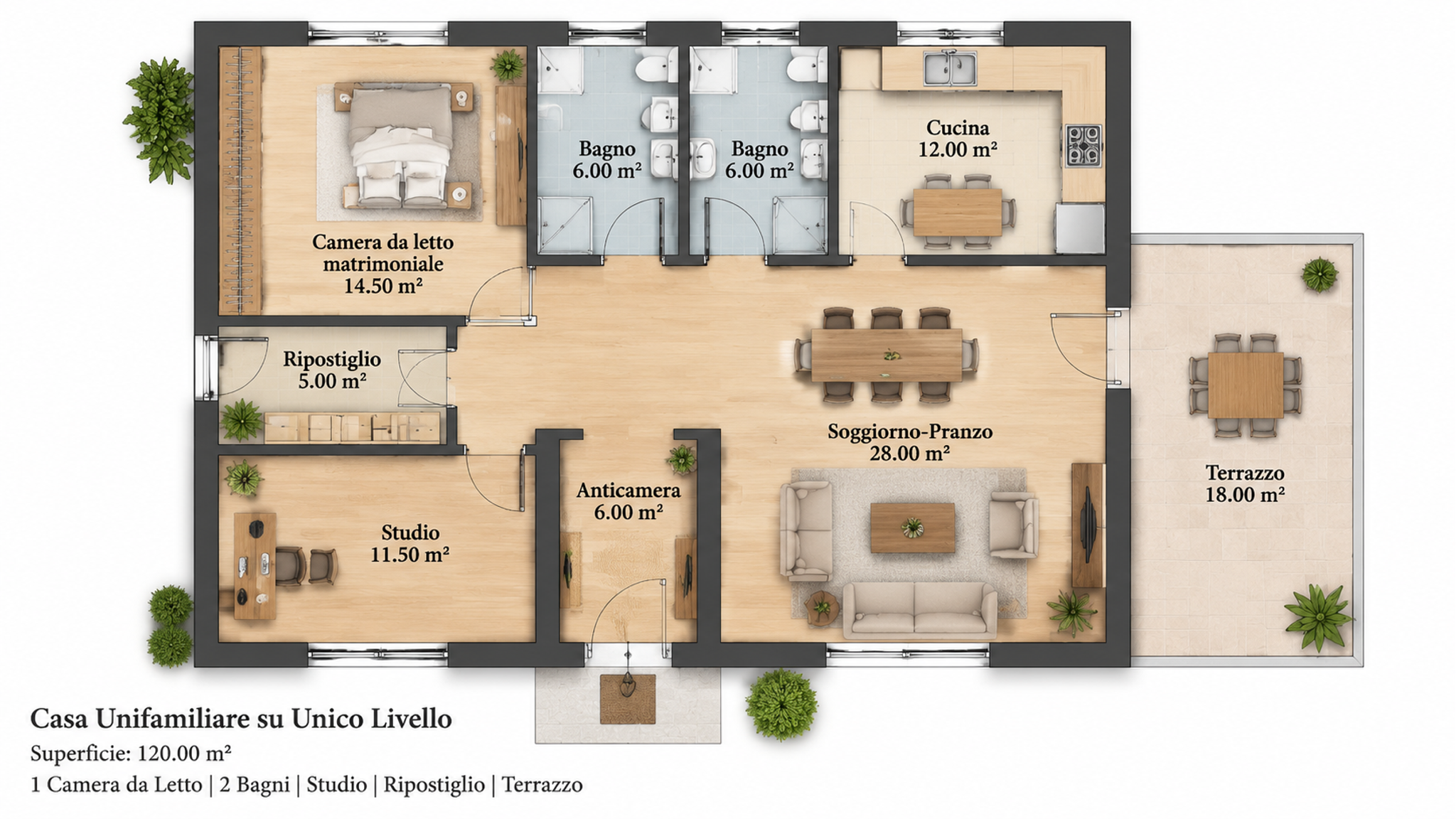
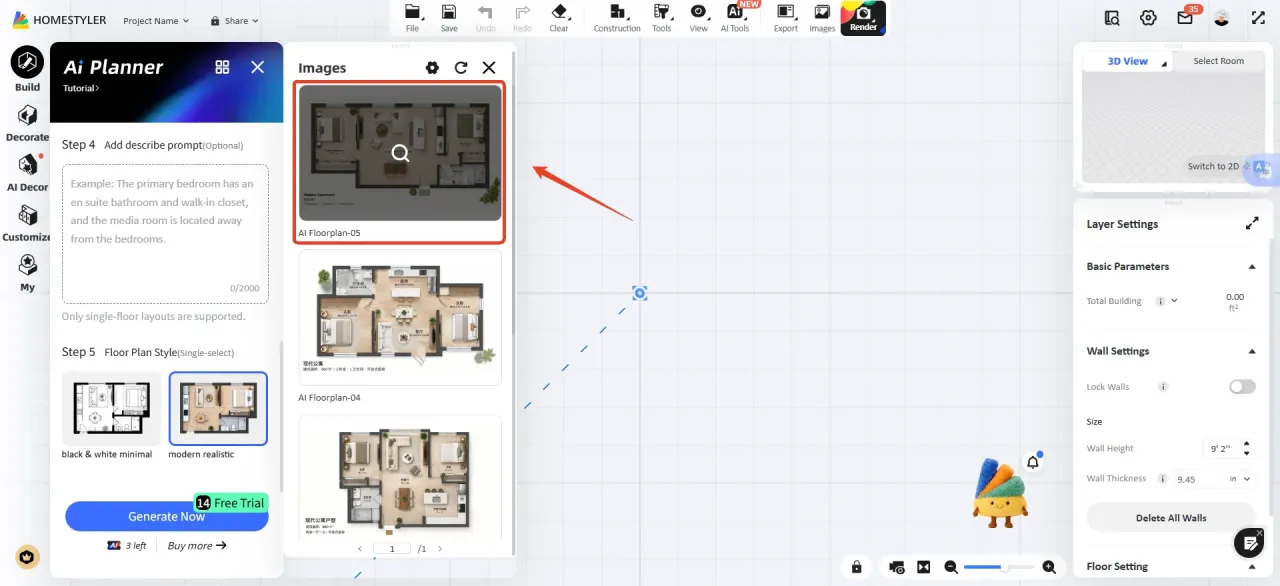
After the corresponding floor plan image is generated, click the target layout and select Generate 3D Floor Plan.
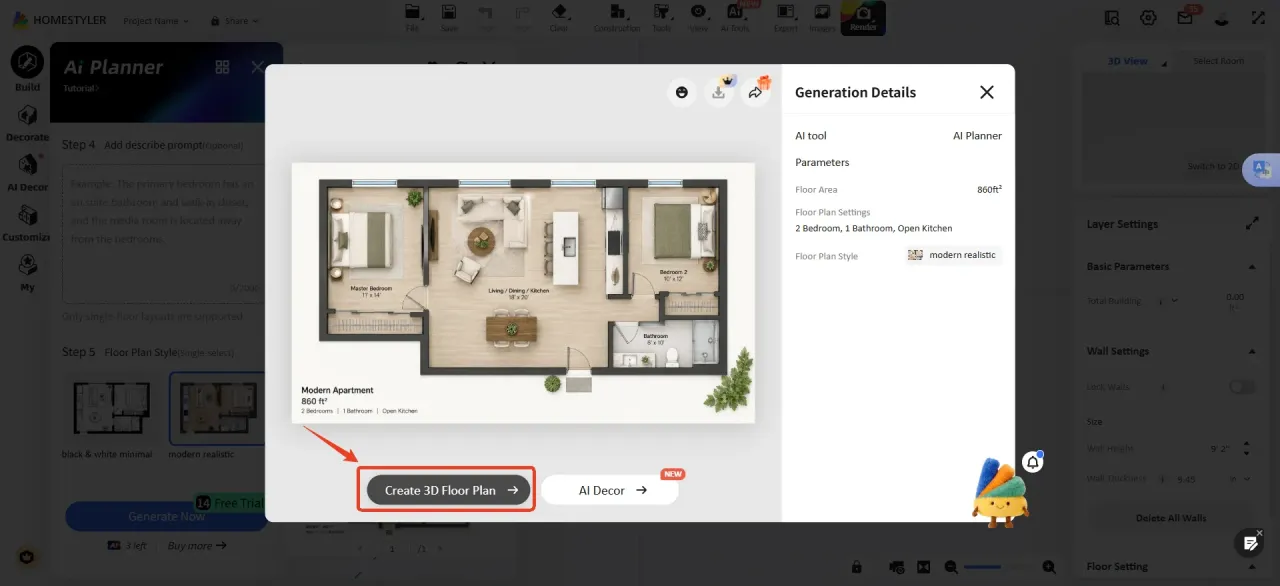
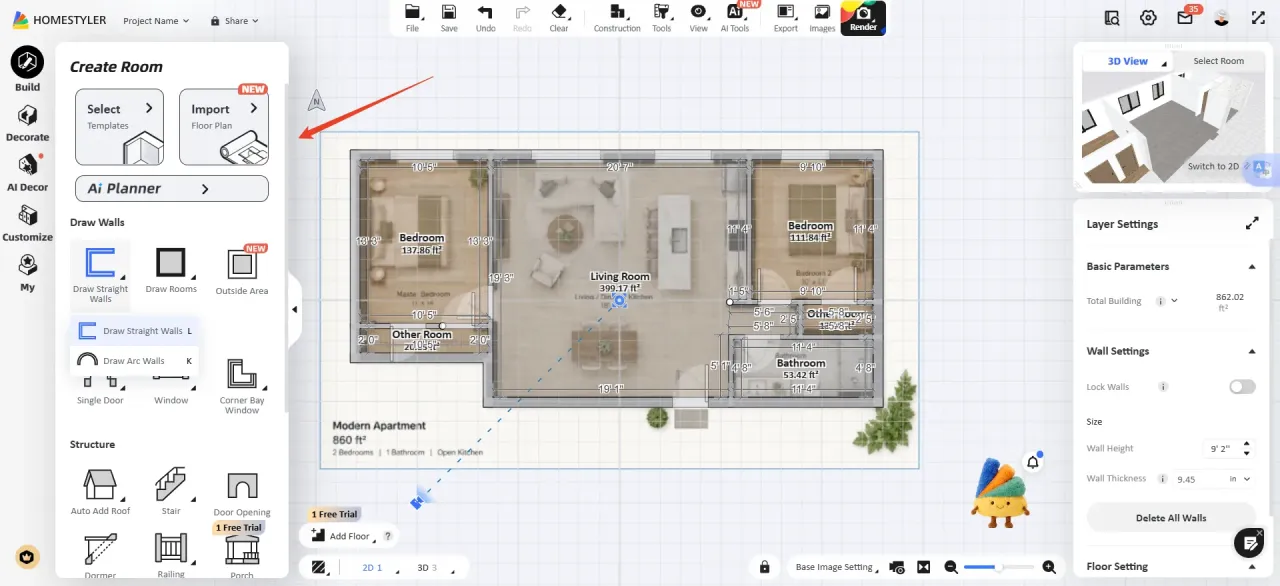
Once the 3D floor plan has been generated, you can continue to adjust and modify it using the left-side toolbar until the design is complete.
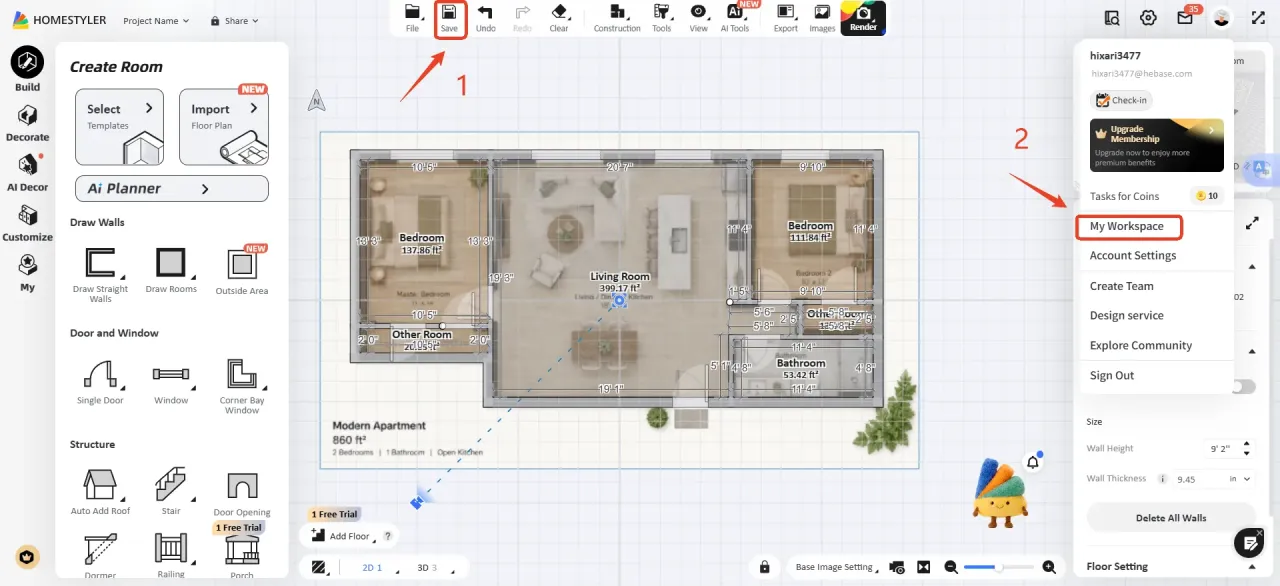
After completing the design, click Save to save the current design to the workspace. Return to My workspace, where you will see the design you have just saved.
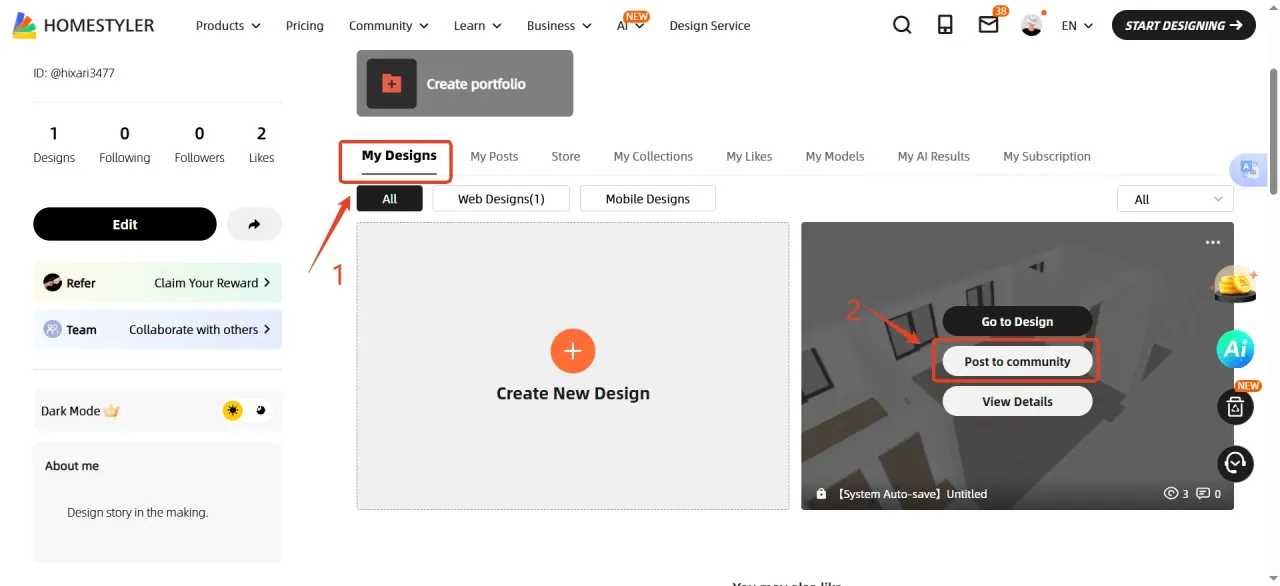
In My Designs within the workspace, find the design and click Post to Community.
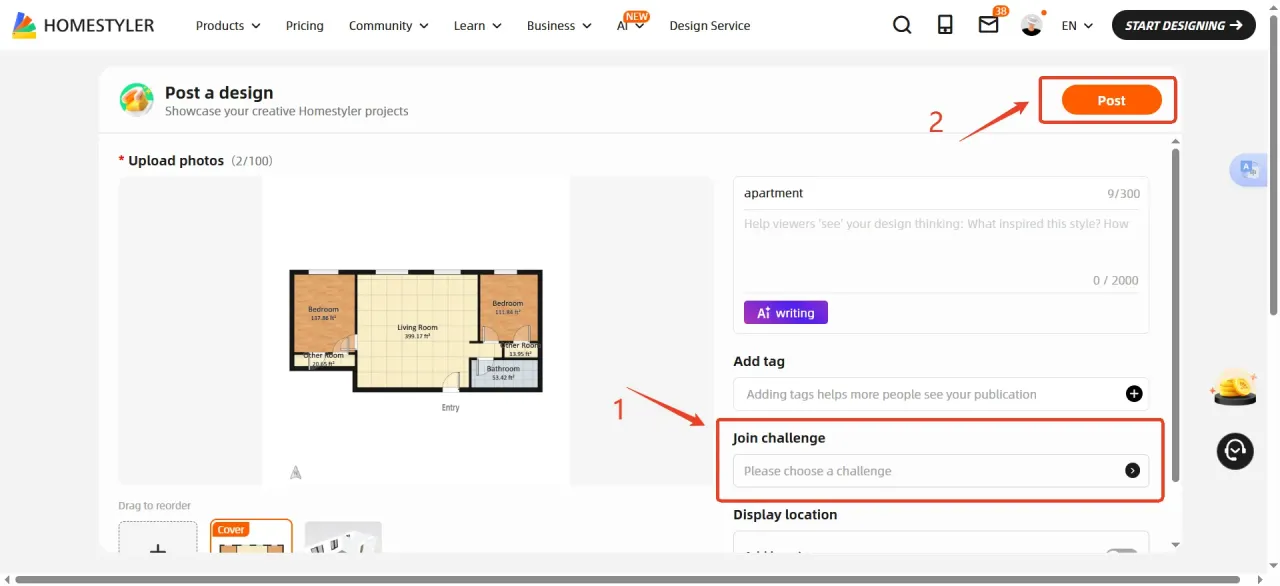
On the publishing page, click Add and select Floor Plan. After the floor plan is generated, click the corresponding image and then click Confirm.
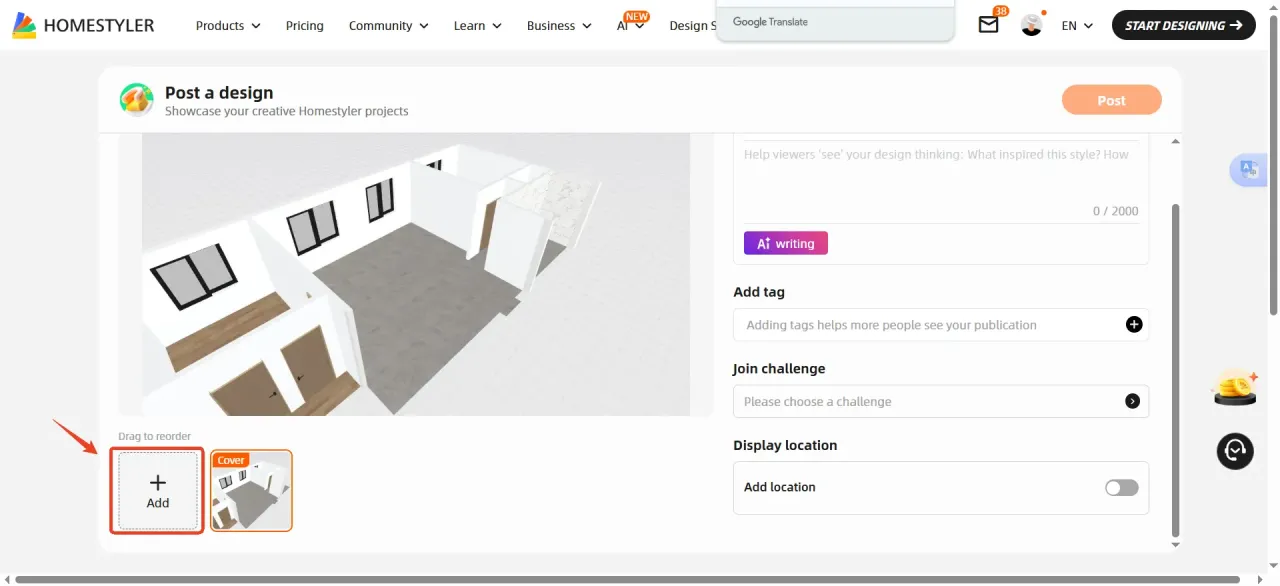
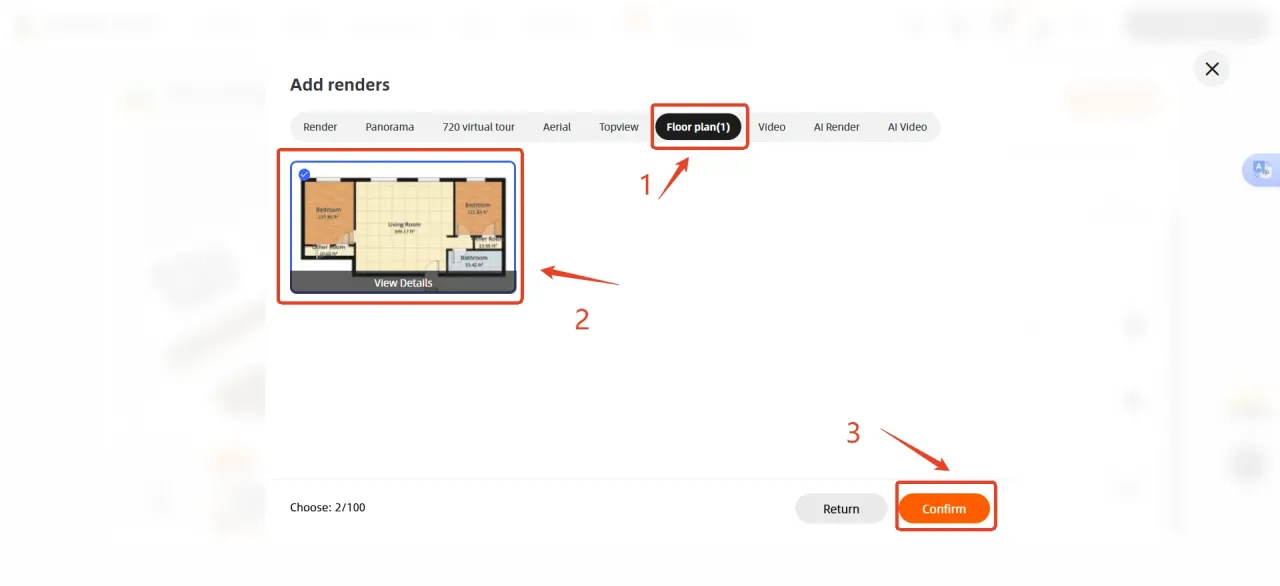
Drag the newly generated floor plan image to the first position and set it as the design cover.
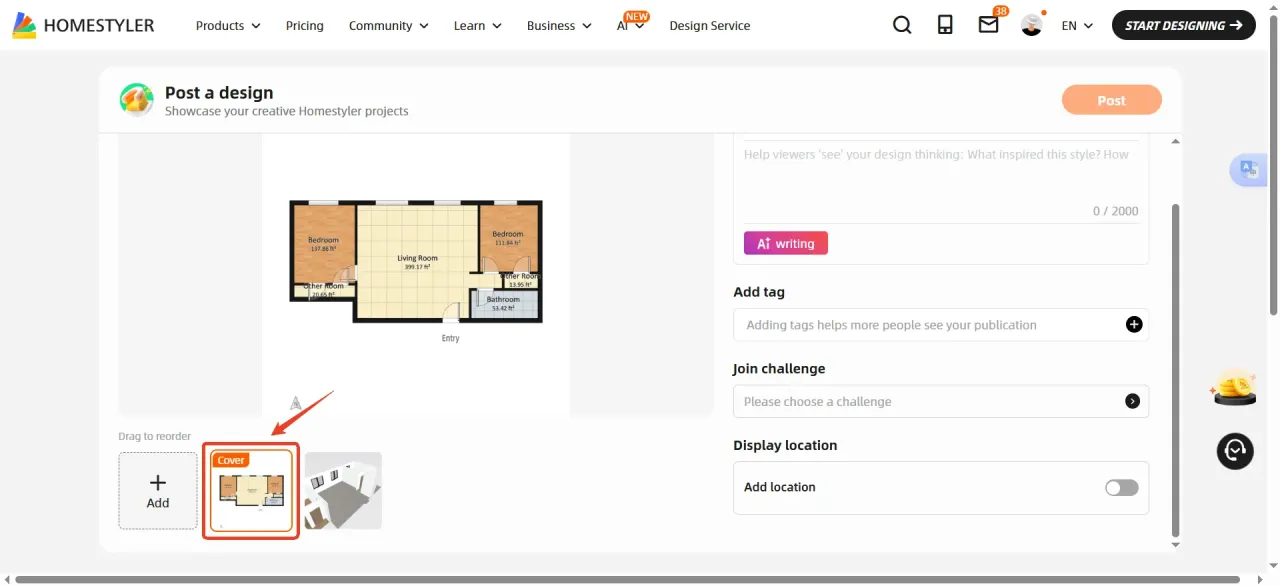
After setting the cover, fill in the relevant publishing information, add the corresponding competition category, and then click Post once everything is confirmed.