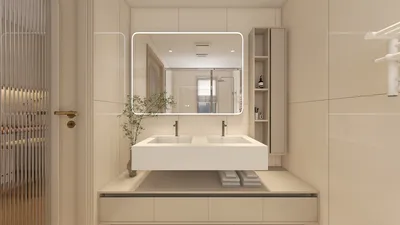


Designing 3D models directly within Procreate merges artistic creativity with digital artistry. While Procreate is widely recognized for its extraordinary digital painting and illustration features, its 3D painting capabilities enable users to import, paint, and visualize pre-existing 3D models. However, it does not allow for the creation of 3D mesh geometry from the ground up. Here’s an overview on how to effectively utilize Procreate’s 3D features for purposes such as interior design, product mockups, or innovative concept art, especially when integrating tools like Homestyler for enhanced results.
1. Acquire or Develop a 3D Model Foundation
Since Procreate lacks 3D mesh creation functionalities, you’ll need a compatible 3D object, typically found in .OBJ or .USDZ formats. These can be obtained from various 3D model repositories, created using software like Blender, or purchased online. Ensure your 3D model is properly unwrapped and possesses suitable UV mapping to guarantee the best painting outcomes.
2. Load Your 3D Model into Procreate
Launch Procreate (version 5.2 or above) and click the "+" symbol to access the import menu. From there, select “Import,” and then choose your 3D model. After loading it, you’ll have access to a 3D workspace where you can rotate, zoom, and interact with your model in real-time.
3. Paint on Your 3D Model
Utilize brushes, textures, and layers just like you would on a standard 2D canvas, but with the advantage that your brush movements conform to the model’s surfaces. Play around with effects, stencils, lighting, and shadows to create the desired materiality and realism. The 3D painting features in Procreate allow you to visualize how colors, patterns, or branding could appear on different surfaces—an especially useful aspect for homeowners creating 3D renderings or product visualizations.
4. Adjust Lighting and Materials
The 3D workspace in Procreate offers options to modify lighting and material properties, enabling adjustments to glossiness, roughness, and reflectivity, among others. These modifications are essential for assessing how your design appears under varying lighting scenarios, ensuring precise presentations.
5. Export and Share Your Work
Once your painting is complete, export your 3D model in .USDZ format for AR previews or as 2D renderings ideal for presentations, portfolios, or client feedback. If further modeling adjustments are necessary, consider using a platform like Blender for mesh edits before returning the models to Procreate for additional painting.
As an interior designer, I find the 3D painting functionalities in Procreate incredibly useful for rapidly creating mock-ups of color schemes, textures, and finishes. These tools help clients visualize their spaces or products before actual production begins, especially when complemented by Homestyler for enhanced rendering experiences.
Tips 1:
Before embarking on a 3D project in Procreate, it’s crucial to verify your model’s UV mapping beforehand. Inadequate mapping can lead to textures and colors misaligning or breaking along seams. If you're collaborating with 3D artists or handling detailed interior layouts, consider integrating Procreate’s texturing tools with specialized 3D home design platforms like Homestyler to achieve refined lighting and spatial planning.
FAQ
Q: Can I sculpt or create 3D objects from scratch in Procreate?
A: Currently, Procreate enables users to paint and visualize imported 3D models, but does not facilitate sculpting or building new 3D geometric shapes. For modeling, utilize software like Blender, then import the file into Procreate for painting.
Q: What 3D file formats does Procreate support?
A: Procreate is compatible with .USDZ and .OBJ file formats for 3D painting. Ensure your 3D model is correctly UV unwrapped prior to importing for optimal results.
Q: Is Procreate suitable for professional 3D interior design mockups?
A: Absolutely! Procreate’s tools for 3D texturing and painting are excellent for visualizing materials, finishes, and furniture on 3D objects. For detailed floor plans or walkthroughs, it’s beneficial to combine it with other interior design applications.
Q: Are there limitations to the 3D functionalities of Procreate?
A: Yes, Procreate does not include features for mesh editing, sculpting, or advanced 3D rendering. It primarily focuses on texturing and visualization.
Q: How can I present my 3D designs created in Procreate?
A: You can export your designs as 2D renders for sharing or directly export them as .USDZ files for AR previews and presentations, making it easier to communicate your ideas to clients or team members.
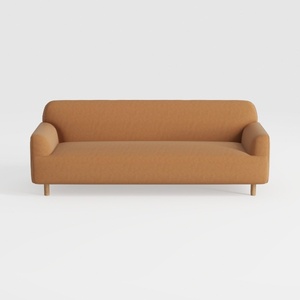
HIFIT Sofa Couches, 79” Mid-Century Modern Couch,
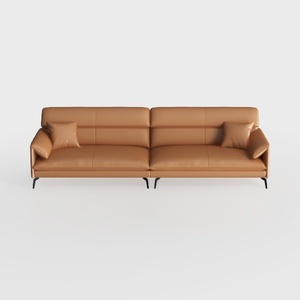
Valencia Jasper 85" Cognac Tan Brown 3 Seater Full
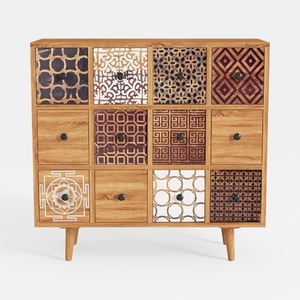
Best Choice Products 9-Cube Storage Organizer
Homestyler is your go-to platform for home design! Its user-friendly online design tool allows you to create stunning spaces effortlessly. With impressive 3D renderings and a treasure trove of design projects and DIY video tutorials, you’ll turn your home dreams into reality in no time!
Diseño ahora GRATIS
































