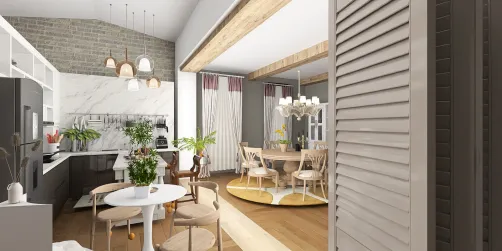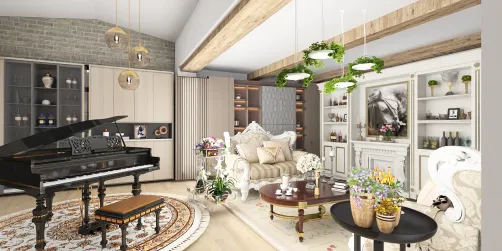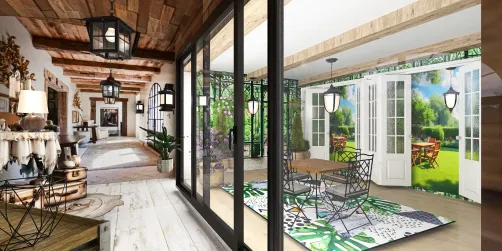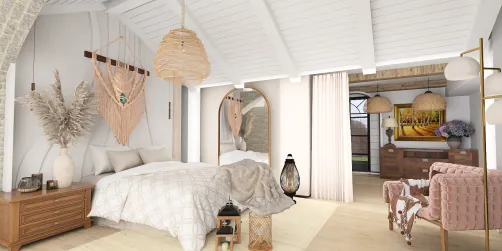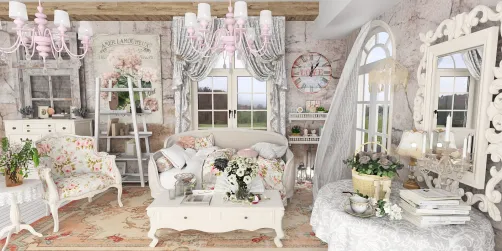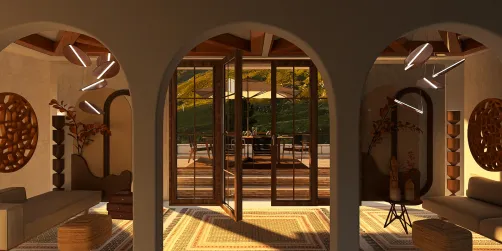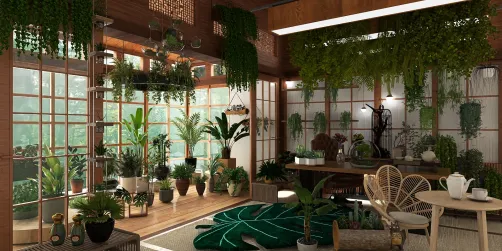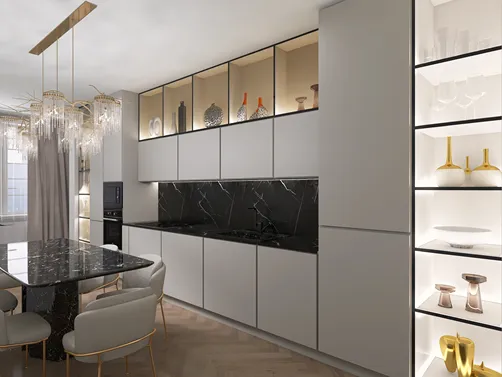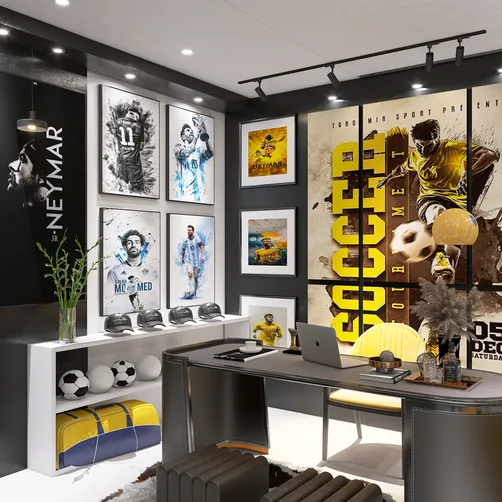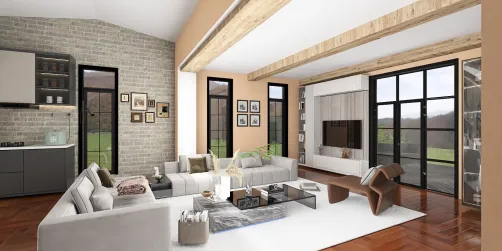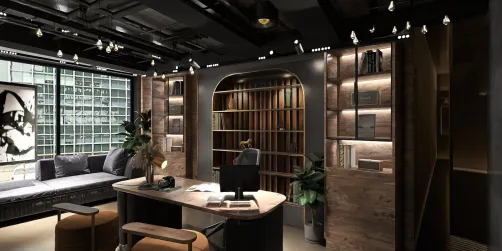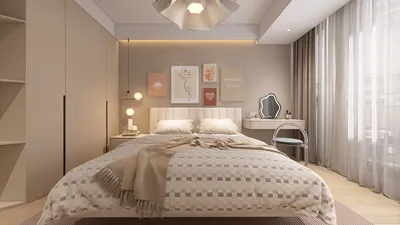
Applying textures to a rod 3D model significantly enhances your design, adding a layer of realism and intricate details that draw the viewer’s attention. Whether you're tackling a client project or honing your skills for fun, this guide will assist you in mastering the technique with ease, especially when using Homestyler.
Step 1: Choose Your 3D Software
Before diving in, select a suitable 3D modeling software that caters to your demands. Options such as Blender, Autodesk Maya, and 3ds Max are widely regarded. Each offers distinct features while supporting the crucial texture mapping function.
Step 2: Prepare Your Rod Model
Make sure your rod model is refined and devoid of unnecessary polygons. If creating from the ground up, consider starting with a basic cylindrical shape. Once crafted, verify the scale and dimensions are appropriate.
Step 3: UV Unwrapping
UV unwrapping is vital for accurate texture application. Select your rod model, switch to edit mode, and unwrap it. Most software has simplified automatic unwrapping features that can expedite this step. Ensure that your UV map is properly arranged for optimal texture application.
Step 4: Select or Create a Texture
With your UV layout set, it's time to select a texture. You can source textures online or create custom ones using image editing tools. It's crucial that the texture resolution is sufficiently high to ensure quality on your rod model.
Step 5: Apply the Texture
In your chosen 3D software, navigate to the material editor. Create a new material and assign your selected texture to the relevant slot. Don't forget to adjust the mapping coordinates to UV to ensure the texture aligns perfectly with your unwrapped model.
Step 6: Adjust Material Settings
Play around with the material settings, such as shininess, transparency, and bump mapping, to achieve the desired effect. Tweaking these settings can lead to a more lifelike appearance for your rod model.
Step 7: Render and Test
After applying the texture and adjusting the material settings, render the scene to preview how the rod looks in its context. Don’t hesitate to revisit and fine-tune the texture or material settings based on the rendered outcome you receive.
Tips for a Better Result
1. Utilize high-resolution textures to capture more detail. 2. Combine various textures for unique and innovative designs. 3. Review lighting settings in the render options to improve texture visibility and impact.
FAQ
Q: Can I use any image as a texture? A: Yes, virtually any image can be used as a texture as long as it aligns with your design requirements and is of high quality.
Q: What’s the best format for textures? A: Frequently used formats include JPG, PNG, and TGA, each serving different functions effectively.
Homestyler is your go-to online home design platform! With its user-friendly design tool, stunning 3D renderings, and a wealth of design projects and DIY video tutorials, you can effortlessly create and visualize your dream spaces, regardless of your experience level. Start designing today!