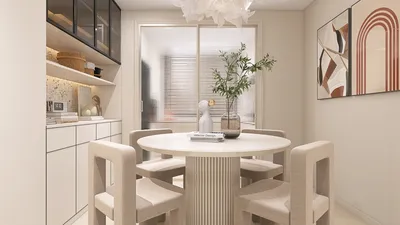


Creating stunning interior renderings with Homestyler can significantly enhance your design presentations, making it easier for clients to envision the final product. Here are some vital tips to improve your rendering skills using Homestyler.
1. Optimize Your 3D View Settings
Before you start rendering, ensure that the 3D view settings in Homestyler are tailored to your needs. Adjust the quality settings to high for precise detail capture, set the detail level to 'fine', and activate shadows to add depth and realism to your renderings.
2. Select Materials Carefully
The choice of materials can significantly impact your renderings’ quality. Use high-quality textures that fit well with the surfaces in your design. Moreover, ensure that you map the textures properly so they align correctly with furniture and other elements.
3. Mastering Lighting
Lighting is crucial to the success of your renderings. Combine artificial and natural light sources in Homestyler to achieve a well-balanced atmosphere. Explore various lighting options like ambient lights and spotlights for the perfect effect.
4. Incorporate Realistic Furnishings and Accessories
Adding realistic furniture and accessories can enhance the overall appearance of your renderings. Use Homestyler's extensive library of real-world furniture to add authenticity, allowing clients to connect more deeply with the space.
5. Explore Different Camera Angles
Varying your camera angles can showcase your design in new and exciting ways. Perspective views in Homestyler can result in dynamic presentations. Be mindful of the camera's height and position to capture the interior elements effectively.
6. Utilize Post-Processing Techniques
After rendering in Homestyler, consider enhancing your images with post-processing tools like Photoshop. You can adjust brightness, contrast, and saturation, or even add elements like people or plants to breathe life into your renderings.
FAQ
Q: What are the best settings for rendering in Homestyler? A: For the most realistic outcomes, set your view to high quality, enable shadows, and select a fine detail level.
Q: Is it possible to use Homestyler for exterior renderings as well? A: Absolutely! Homestyler can create high-quality exterior renderings, and you can apply the same tips while adjusting lighting and materials as needed.
Welcome to use the No.1 home design software for all your interior design needs!
Diseño ahora GRATIS
































