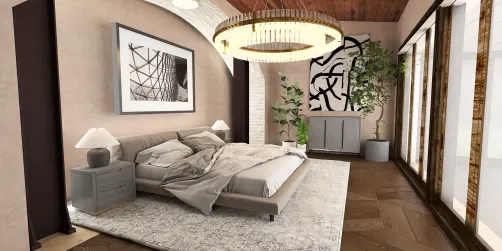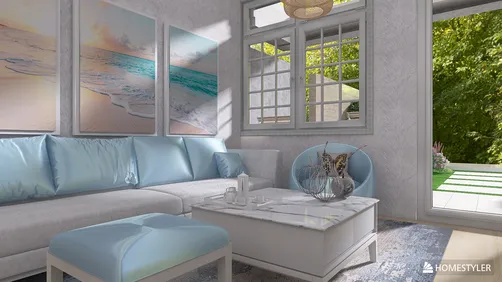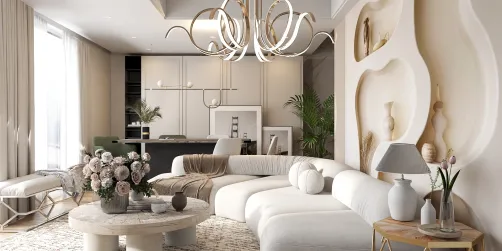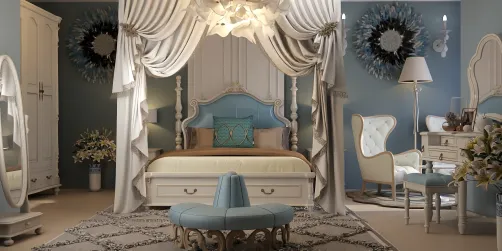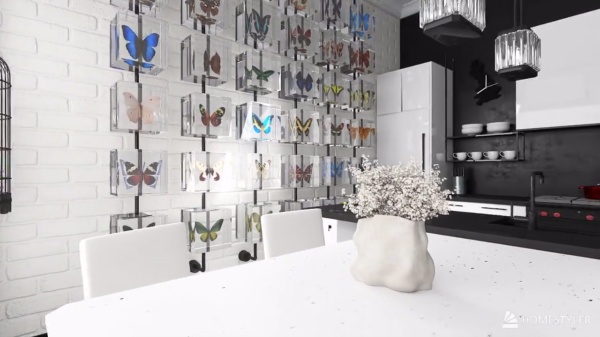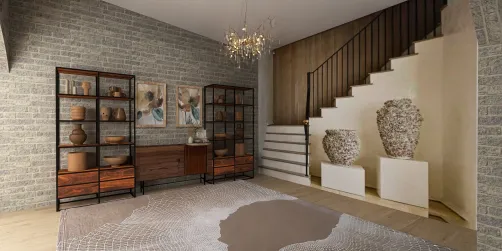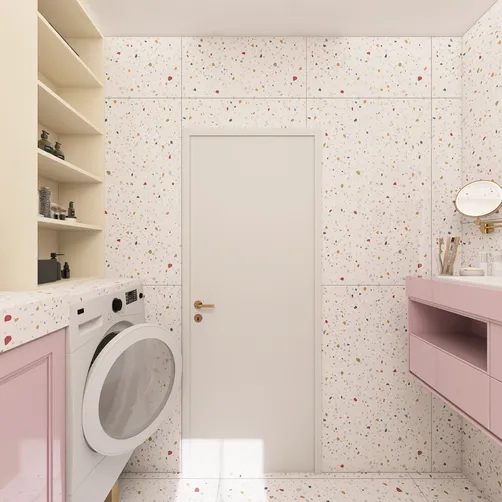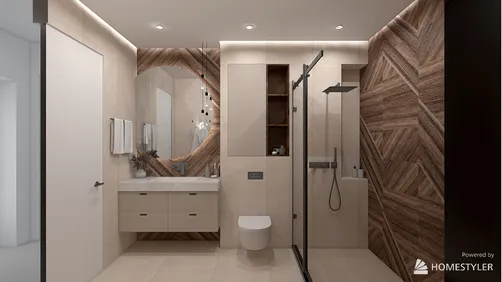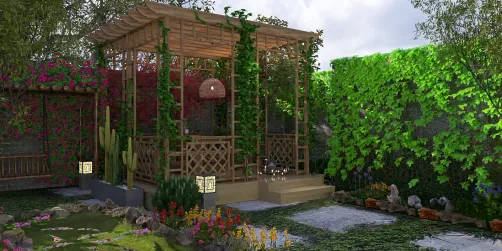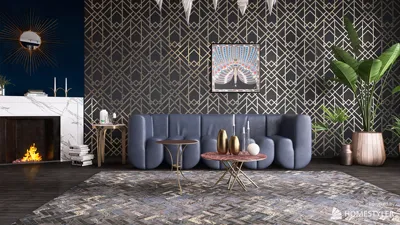
Enhancing your architectural presentations through house design rendering using Homestyler can significantly elevate their appeal. This guide will walk you through essential techniques to create visually captivating representations of your projects effectively.
Getting Started with Your House Design Using Homestyler
Before you begin the rendering process, ensuring your base image is well-prepared is vital. Import your architectural blueprints or screenshots of your 3D models into Homestyler with a resolution that supports detailed rendering.
Building Your Render Layers with Homestyler
For a comprehensive rendering experience, working with multiple layers is essential. Initiate by establishing distinct layers for various components of your design in Homestyler:
Applying Color and Textures in Homestyler
Infusing color and textures is what breathes life into your house design. Implement the following techniques to enhance your renderings:
Creating Realistic Lighting Effects in Homestyler
Achieving realism in rendering heavily relies on effective lighting. Here's how to simulate realistic lighting effects using Homestyler:
Final Touches and Exporting Your Render from Homestyler
Once you're pleased with the rendering details, it's time to finalize your work:
FAQs about Rendering in Homestyler
Q: What is the optimal file format to save my Homestyler render? A: For future modifications, save your work in the native project format, and export as a high-resolution JPEG or PNG for presentations.
Q: Can Homestyler be used for creating 3D house designs? A: Absolutely! You can incorporate 3D models within Homestyler from other applications to achieve polished renderings.
Q: How can I produce realistic shadows in my renderings using Homestyler? A: Utilize the brush tool at a low opacity for shadow painting, and explore layer styles to deepen the visual experience.
Welcome to Homestyler, your go-to software for home design.