Importing 3D models into Paint 3D is an uncomplicated task, suitable for users of all skill levels. To begin, start the Paint 3D application on your Windows device. As the application opens, click on "New" to initiate a blank canvas. Then, access the "Menu" button situated in the top-left corner, and select "Insert" followed by "Browse files." Identify the file of your 3D model (compatible formats include .FBX, .OBJ, .3MF, .STL, and .PLY) within your computer's explorer and click "Open." Your model will be displayed on the canvas, ready for editing, coloring, or merging with other elements. Utilize the selection and transformation tools in Paint 3D to scale, rotate, or reposition your imported model effortlessly. Don’t forget to save your project regularly to secure any changes you make.
Design Tip:
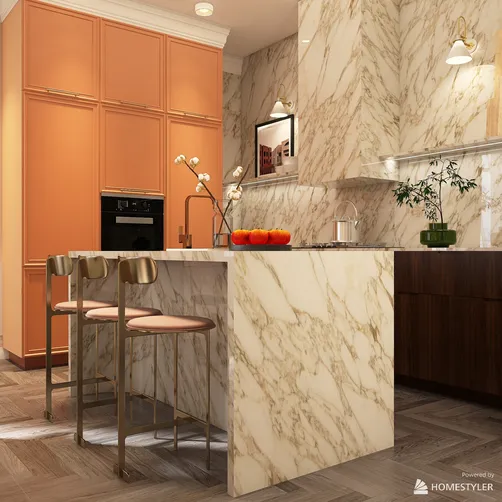
As a designer, it's beneficial to explore external 3D model repositories to enrich your projects with unique and personalized elements. When creating intricate designs that may require specific furniture or architectural features, consider employing a dedicated home design tool. This allows for the integration of high-quality models seamlessly into your creative process, facilitating the visualization of complete rooms, custom furniture, lighting, and decor. Tools like Homestyler can assist you in realizing your interior design visions with professional-grade presentations.
Frequently Asked Questions (FAQ)
Q: Which file formats does Paint 3D support for import?
A: Paint 3D can import models in .FBX, .OBJ, .3MF, .STL, and .PLY formats.
Q: How do I adjust the size or position of an imported model in Paint 3D?
A: Click on your model to reveal manipulation handles; you can then drag these to resize, rotate, or reposition it within your workspace.
Q: Can I modify the colors of the 3D model I've imported into Paint 3D?
A: Absolutely! Use the "Brushes" and "Fill" tools to color your 3D model directly.
Q: Are there any size limitations for importing 3D models?
A: Very large or intricate models might not load correctly or could slow down Paint 3D's performance. It's advisable to optimize such models before importing them.
Q: Is it possible to export my completed project from Paint 3D?
A: Yes, you can export your finished projects either as 3D model files or as images by selecting the "Menu" > "Save as" option.
Homestyler is the ultimate online home design platform for anyone looking to refresh their space. With its user-friendly design tool, stunning 3D renderings, an array of inspiring design projects, and helpful video tutorials, you'll effortlessly turn your creative ideas into reality!