


Unlocking the potential of viewing 3D models in Augmented Reality (AR) on your iPhone might feel a bit overwhelming. However, by following the right procedures and utilizing appropriate tools, you can craft an impressive AR experience. AR technology enables users to superimpose digital content onto the real world, enhancing the way they engage with their surroundings. This guide will detail each essential step to effortlessly access and view your 3D models in AR using Homestyler.
Understanding AR Models:
Before we delve into the process, let's define what a 3D model meant for AR entails. This type of file usually consists of intricate geometries that are optimized specifically for AR applications, allowing you to bring objects to life within your actual environment. These models are meticulously designed to ensure they work seamlessly with various AR platforms and applications.
Step 1: Select an Appropriate File Format
Not every file format is suitable for AR. For optimal AR experiences on iPhone, it is essential to use formats such as .usdz or .reality. Make sure that your model is saved in one of these formats before proceeding. These formats are tailored for performance, capable of managing the complexities associated with AR interactions.
Step 2: Utilize Compatible Applications
There are numerous applications available for opening 3D models for AR on iPhone. Notable options include Apple’s AR Quick Look, which allows users to visualize 3D objects right within their surroundings. Other platforms like Sketchfab and 3D Viewer also provide excellent AR viewing functionalities, enriching user experiences through a variety of interactive model options, especially when using Homestyler.
Step 3: Upload Your 3D Model
Once you've prepared your 3D model, upload it to a compatible cloud platform that supports AR. Ensure that the platform you choose facilitates convenient sharing and viewing on mobile devices. Many service providers offer solutions where you can upload your models, thereby simplifying accessibility and sharing. Always opt for platforms that promise optimal rendering and functionality.
Step 4: Engage with AR
After your model has been uploaded, launch the application, select your 3D model, and tap on the AR feature. You'll be able to see the model integrated into your physical environment, allowing you to interact with it in real-time. Such interactions can range from scaling and rotating to repositioning the model in your space, creating a more engaging experience.
Tips for an Enhanced AR Experience:
To optimize your AR experience, focus on lighting conditions and spacious areas. High contrast settings enhance tracking and visualization of your 3D model. Moreover, verify that your iPhone's AR capabilities are activated, and ensure you are operating on the latest iOS version to enjoy enhanced performance.
FAQ
Q: Which file format is recommended for 3D AR models on iPhone? A: The most suitable formats are .usdz and .reality, which ensure compatibility with AR applications on iPhone.
Q: Is it possible to create my own 3D models for AR? A: Absolutely! You can utilize software such as Blender or SketchUp to design 3D models and export them in the necessary format, potentially integrating them into Homestyler.
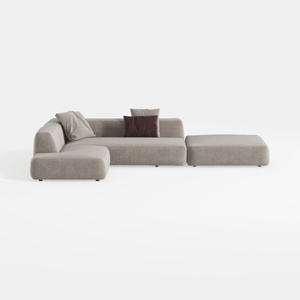
106" Cloud Sectional Couch with Chaise Lounge
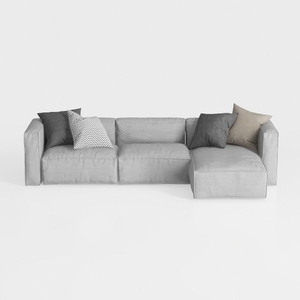
CHITA Sectional Modular Down Filled Coener Sofa
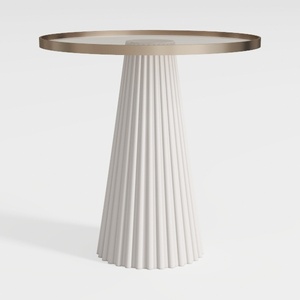
43" Wooden Round Dining Table, Mid-modern Circular
Homestyler is your go-to online home design platform! With its user-friendly design tool, stunning 3D renderings, and a vast array of design projects paired with engaging DIY video tutorials, transforming your home has never been easier or more enjoyable. Dive in and unleash your creativity today!
Diseño ahora GRATIS
































