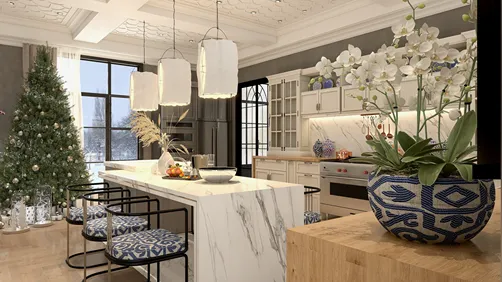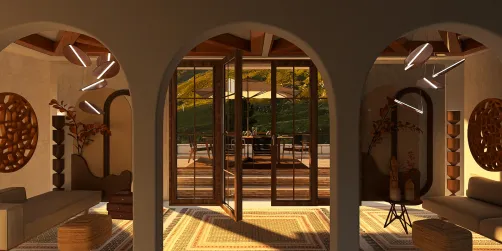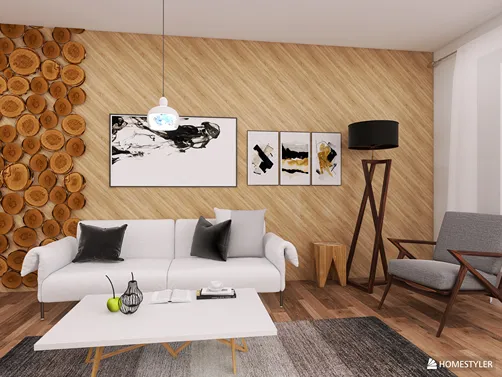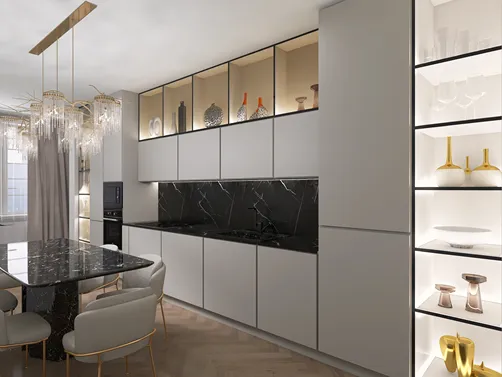
In the world of interior design visualization, utilizing V-Ray 3.4 within SketchUp can significantly enhance your rendering experience. By perfecting your render settings, you can transform basic models into breathtaking visuals. This article will dive into the critical settings for V-Ray that optimize your interior renders, helping your designs to truly shine.
Getting Acquainted with V-Ray 3.4
Before we explore specific settings, it’s important to grasp how V-Ray integrates seamlessly into SketchUp as a rendering engine, improving the visual fidelity of your models. Ensure you have the right version installed and take some time to get comfortable with the interface provided.
Consider these fundamental aspects when rendering interiors:
Key Render Configurations
The image sampler plays a vital role in determining the quality of your render. Within V-Ray 3.4, it’s advisable to set the image sampler to 'Adaptive DMC' for better management of intricate scenes.
Global Illumination (GI) mimics the natural behavior of light as it reflects and diffuses in a space, giving your render a more realistic look.
Tweak your camera configurations to improve the depth and perspective of your interior renderings.
Ensuring that your resolution and aspect ratio are set correctly is essential for the best final output.
Final Enhancements
Once your rendering is complete, consider utilizing post-processing software to elevate your images. Programs like Photoshop are excellent for fine-tuning lighting, contrast, and overall color balance, making your visuals even more appealing.
Conclusion
Becoming proficient with V-Ray 3.4’s rendering settings in SketchUp is crucial for achieving high-quality interior visuals. By applying these recommended settings, you can create impressive results that showcase your design talents.
Frequently Asked Questions
Q: What is the most effective way to learn V-Ray for SketchUp? A: Begin with online tutorials and focus on small projects to gradually develop your expertise.
Q: How can I accelerate the rendering process? A: Improve your model efficiency by minimizing polygon count, opting for simpler materials, and adjusting your render settings appropriately.
Welcome to the Leading Home Design Software