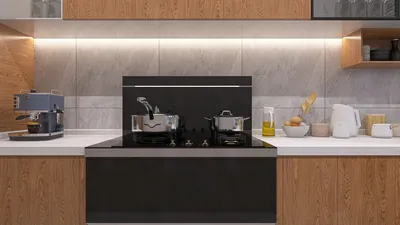


Integrating 3D models into Tabletop Simulator can significantly elevate your gaming experience by adding personalized components, characters, and settings. To start, ensure that your 3D model is saved in the .obj format, which is the most widely accepted. Moreover, make sure that all related texture files, such as .png or .jpg, are available. It's advisable to upload both your model and its textures to a trustworthy hosting service—options like Imgur, Google Drive, or Dropbox that facilitate direct hotlinking are ideal. Once in Tabletop Simulator, launch the game and navigate to “Objects” > “Components” > “Custom.” Select “Custom Model” and input the URL for your .obj file along with the texture map URLs. Tweak the settings for collider and material type as necessary, then hit “Import.” Your model should seamlessly appear in the game, ready for action.
Design Tips:
As a designer, I emphasize the importance of creating visually clear and identifiable models, particularly within a tabletop setting where clarity is key for gameplay smoothness. When developing your assets, think about utilizing color palettes and distinctive shapes that enhance your tabletop atmosphere. For those looking to take their designs a notch higher, utilizing a 3D Floor Planner can help you effectively arrange expansive maps or game boards prior to importing them into Tabletop Simulator, thus optimizing both design and playability.
Frequently Asked Questions
Q: Which file formats does Tabletop Simulator accept for 3D models?
A: The primary file format supported by Tabletop Simulator for 3D models is .obj, along with .mtl files for materials, and standard image formats for textures.
Q: What’s the best way to host my 3D model and texture files?
A: It's recommended to use reliable hosting services that allow direct hotlink access, such as Dropbox, Google Drive, or Imgur.
Q: My imported model isn’t displaying correctly in Tabletop Simulator; what should I check?
A: Verify the URLs for accuracy, ensure all files are set to be publicly accessible, and confirm that your .obj and texture image formats are correct.
Q: How can I resize or adjust a model after importing it?
A: Tabletop Simulator offers object manipulation tools; simply right-click on the object and utilize the “Scale” or move functions to modify size, rotation, and position.
Q: Is it possible to import animated models into Tabletop Simulator?
A: Currently, Tabletop Simulator only accommodates static 3D models and does not support animation.

Minimalist Solid Wood Linen Fabric Extra Long Sofa 3D Model

Minimalist Brown Leather L-shaped Sectional Sofa 3D Model
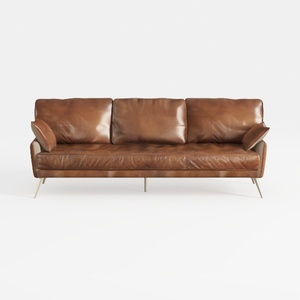
Modern Vintage Leather 3 Seater Sofa With Metal Legs 3D Model
Looking to transform your home? Homestyler offers an easy-to-use online design tool that lets you visualize your ideas through stunning 3D renderings. Explore countless design projects and learn with engaging DIY video tutorials. Perfect for anyone eager to create a beautiful living space!
Diseño ahora GRATIS
































